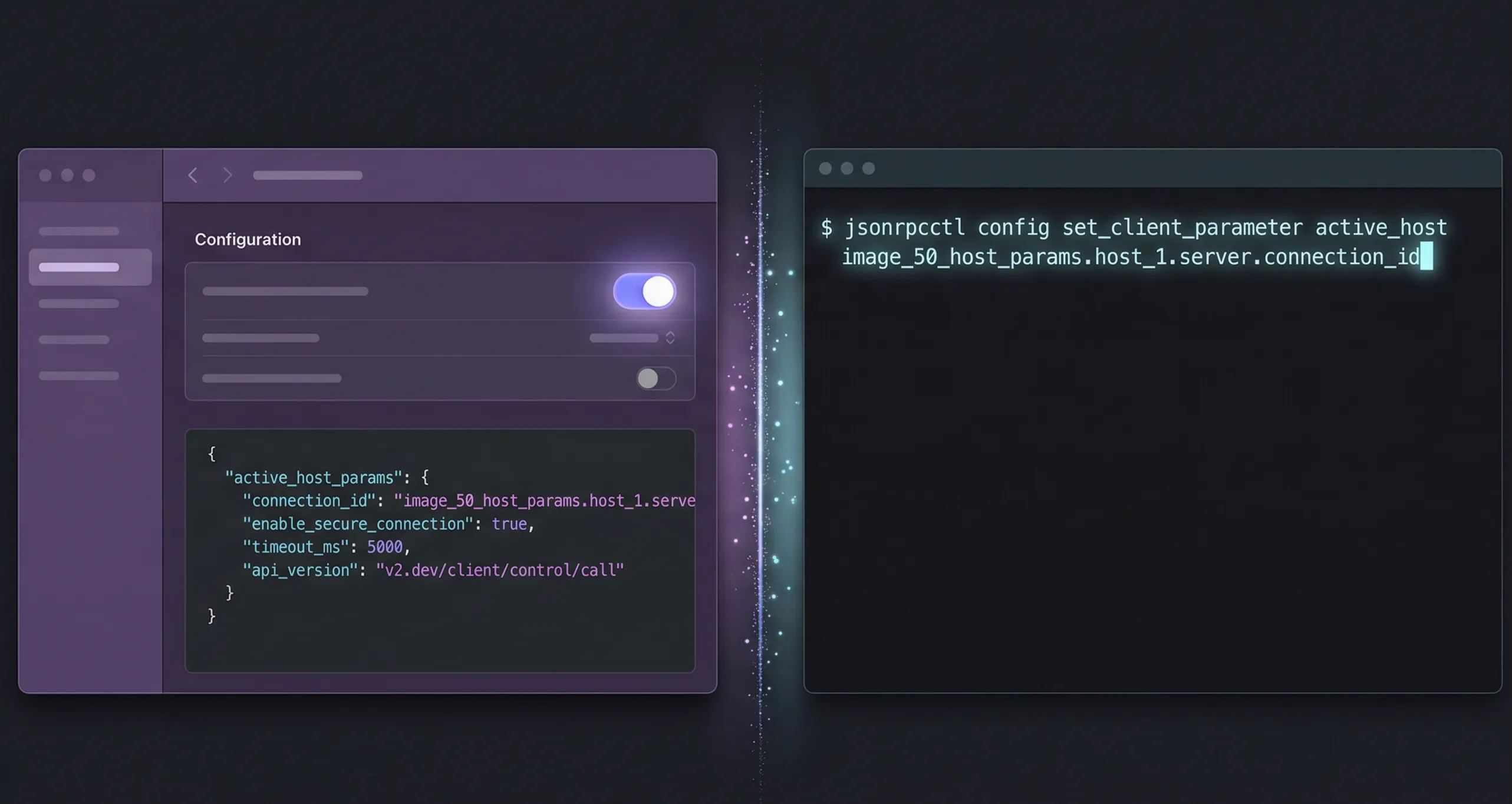
Claude has 18.9 million monthly active users (Backlinko, 2026), and MCP lets each of them connect to external tools through a universal protocol. This guide covers both Claude Desktop and Claude Code setup with exact config to copy-paste, an OAuth walkthrough, and troubleshooting for common issues.
TL;DR
Claude Desktop uses a JSON config file at ~/Library/Application Support/Claude/claude_desktop_config.json to add MCP servers. Claude Code uses claude mcp add --transport http <name> <url>. Both support OAuth 2.1 + PKCE for remote servers. Setup takes under 2 minutes — this guide covers both methods.
What You Need Before Starting
Claude Code hit $2.5 billion in annualized revenue by February 2026 (Business of Apps), and is embedded in tools used by over 70% of Fortune 100 companies (DemandSage). If you’re using Claude in any form, MCP gives you access to external tools through a standardized protocol.
You’ll need one of these:
- Claude Desktop (macOS or Windows) — download from claude.ai/download
- Claude Code (CLI) — install via
npm install -g @anthropic-ai/claude-code
And an account on the MCP server you want to connect to. For this guide, we’ll use OpenClaw’s MCP server — the free tier works for everything shown here. If you’re new to MCP, read what MCP is and why it matters first.
How to Set Up MCP in Claude Code
Claude Code launched publicly in May 2025 and hit $1 billion in annualized revenue by November of the same year (Business of Apps). It’s the fastest path to an MCP connection — one command, under 60 seconds.
Run this in your terminal:
claude mcp add --transport http openclaw https://openclaw.direct/mcp
That’s it. Claude Code will open your browser for OAuth authorization. Log in to OpenClaw, approve the connection, and you’re done. The --transport http flag tells Claude Code this is a remote server using Streamable HTTP (not a local stdio server).
You can control where the config lives with the --scope flag:
--scope local(default) — available only to you in the current project--scope project— shared with everyone via.mcp.jsonin the project root--scope user— available across all your projects
Verify the connection:
claude mcp list
You should see openclaw listed with its Streamable HTTP endpoint. Now try a prompt: “List my instances” or “What’s the health of my agents?” Claude will call OpenClaw’s AI fleet management tools and return live data.
How to Set Up MCP in Claude Desktop
Claude Desktop uses a JSON config file to register MCP servers. Open it through the app: Settings > Developer > Edit Config. This creates the file if it doesn’t exist.
The file location:
- macOS:
~/Library/Application Support/Claude/claude_desktop_config.json - Windows:
%APPDATA%\Claude\claude_desktop_config.json
Add OpenClaw’s MCP server to the config:
{
  "mcpServers": {
    "openclaw": {
      "url": "https://openclaw.direct/mcp"
    }
  }
}
Save the file and restart Claude Desktop completely (quit and reopen, don’t just close the window). After restart, you’ll see an MCP server indicator in the bottom-right of the input box. Click it to see OpenClaw’s 11 available tools.
The most common mistake? Forgetting to restart Claude Desktop after editing the config. The app only reads claude_desktop_config.json at launch. If you don’t see the MCP indicator after saving, quit the app fully and reopen it. On macOS, use Cmd+Q — clicking the red close button just hides the window.
First Commands to Try
Once connected, try these prompts to verify everything works. Claude will call OpenClaw’s MCP tools automatically based on your request:
- “List my instances” — calls
list_employeesto show all your AI agent instances - “What’s the health of my agents?” — calls
employee_wellness_checkfor status across your fleet - “Show my billing status” — calls
employee_timesheetfor usage and cost data - “Show available plans” — calls
list_plansto see subscription options
Each request shows you which MCP tool Claude is calling and asks for your approval before executing. This is the user consent layer of MCP’s security model — one of the key differences when understanding MCP server vs AI agent responsibilities. For more workflow ideas, see our guide to real-world MCP use cases.
Troubleshooting Common Issues
Three issues account for most MCP setup problems. Here’s how to fix each one.
OAuth not completing: If the browser opens but you’re stuck on a blank page or the redirect fails, check that your browser isn’t blocking popups from the MCP server’s domain. Some corporate firewalls block OAuth redirect URLs. Try a different browser or disable popup blocking temporarily.
JSON syntax errors (Claude Desktop): A missing comma, extra comma, or mismatched bracket in claude_desktop_config.json silently disables all MCP servers. Validate your JSON at jsonlint.com before saving. The most common mistake: adding a trailing comma after the last server entry.
Server not appearing after restart: Make sure you fully quit Claude Desktop (Cmd+Q on macOS, not just close the window). If the MCP indicator still doesn’t appear, double-check the config file path — it must be in the exact location listed above, not in your home directory or Desktop.
Transport mismatch: If you’re trying to connect to a remote server like OpenClaw, make sure you’re using HTTP transport, not stdio. In Claude Code, use --transport http. In Claude Desktop, use "url" (not "command") in the config JSON.
Frequently Asked Questions
Can I use Claude’s free tier with MCP?
Yes. MCP server connections work on all Claude plans, including the free tier. The limitation is on Claude’s usage limits, not MCP connectivity. OpenClaw’s free tier also supports full MCP access — all 11 fleet management tools work without a paid plan.
Where is the Claude Desktop config file on macOS?
The config file is at ~/Library/Application Support/Claude/claude_desktop_config.json. Access it via Settings > Developer > Edit Config in Claude Desktop, or use Finder’s Go > Go to Folder (Cmd+Shift+G) since ~/Library is hidden by default.
What’s the difference between stdio and HTTP transport?
Stdio runs local servers as child processes — for file access, databases, and tools on your machine. HTTP connects to remote servers over the network for cloud services like OpenClaw. Remote MCP servers grew 4x since May 2025 (Zuplo MCP Report).
Can I connect multiple MCP servers at once?
Yes. Both Claude Desktop and Claude Code support multiple simultaneous MCP server connections. In Claude Desktop, add each server as a separate entry under "mcpServers". In Claude Code, run claude mcp add for each server. Each connection runs independently with 97 million monthly SDK downloads supporting the ecosystem (Pento, 2025).
Next Steps
- Try it now: Connect to OpenClaw’s MCP server and manage your AI fleet from Claude
- Explore use cases: See 10 real-world MCP examples for workflow inspiration
- Understand the protocol: Read our MCP architecture deep dive to learn how transport, auth, and security work under the hood
- Other platforms: Already using ChatGPT or Cursor? See our guides to set up MCP with ChatGPT or connect Cursor and Windsurf via MCP
Sign up for OpenClaw free and connect via MCP in under two minutes.